Construction Notes Manager
for AutoCAD
CNM "Construction Notes Manager" Tutorial - Section Nine
Introduction:
Section One: INSTALLING CNM & SETUP
Section Two: TUTORIAL SETUP
Section Three: EDITING PROJECT NOTES
Section Four: INSERTING "BUBBLE NOTES"
Section Five: EDITING BUBBLE NOTES
Section Six: RUNNING "NOTES MANAGER
Section Seven: PHASED CONSTRUCTION NOTES
Section Eight: QUANTITY TAKE-OFF
Section Nine: CNM Editor Configuration
Section Ten: Customizing CNM
Section Eleven: Video Files
9.0 - CNM EDITOR CONFIGURATION
The CNM editor has several different options in order to better customize your construction notes. By clicking on the Config tab you can see the various settings that help control the way the notes are setup and the way they come into your drawings.
Under CNM Settings you can specify the number of phases and whether or not you wish to use the AutoCAD tabs for different drawings or not. If you intend on doing all of your plans in one drawing, but use different tabs in AutoCAD for each sheet, then you would want the setting for "Process current LAYOUT tab only" set to yes. If you intend to do one drawing per sheet, then the setting should be set to no.
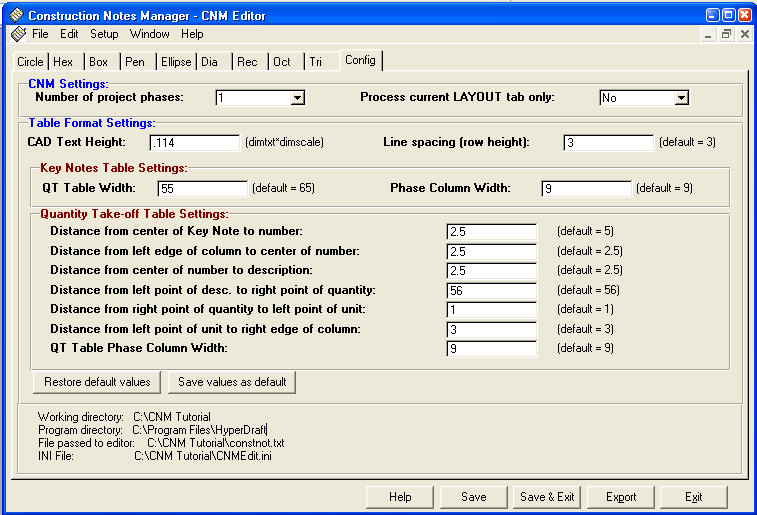
Under "Table Format Settings" you can specify the scale or size of the quantity and note table that is imported in the drawing when you do the Key Notes Table. Generally, you must coordinate the size of the noteqty.dwg block and this setting when trying to size your table in the drawing. See Section 10 for customizing CNM.
The Line Spacing settings control the spacing from row to row in your key notes table. If you would like to have closer rows, you will probably need to turn the layer for the grid off in your drawing if it is a part of the noteqty block.
The Key Notes Table Settings do not currently change anything. For now leave them as is.
The Quantity Take-off Table Settings control how the table will come in when running Quantity Take-off. As you run Quantity Take-off you will see how the table is brought in to the drawing. Feel free to change these settings to find out how it affects the quantity take-off table.
Additionally, all of the settings can be saved as your default settings.
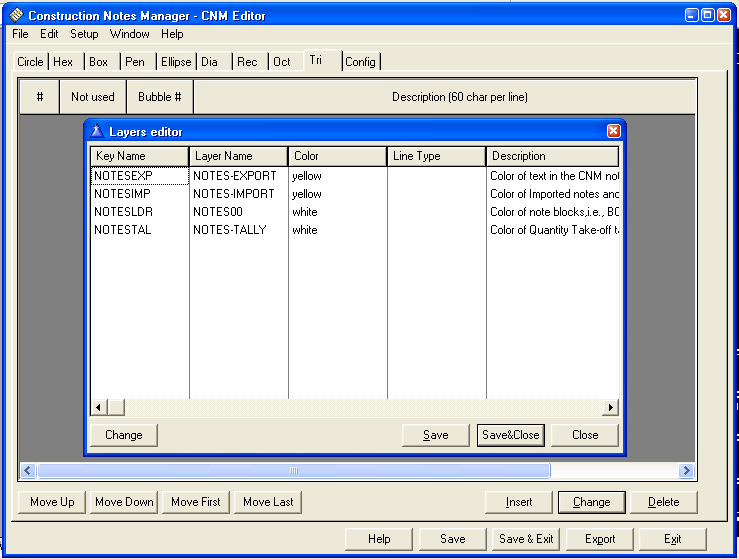
As shown in the next figure, you can also change the color and layer name of particular layers that the program uses. The program at this time does not initialize the layer settings immediately following the changes. You must close AutoCAD and reopen a drawing in order for the changes to take place. Eventually this feature will be fixed so that it immediatly affects the drawing attributes.
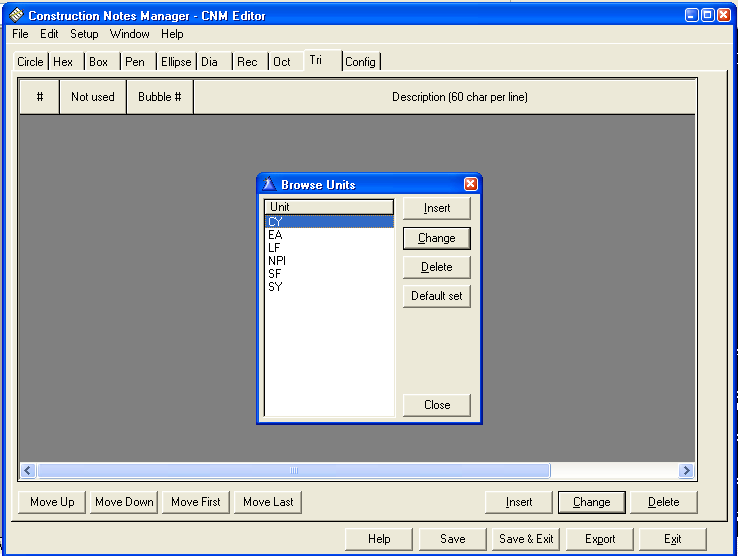
The following figure shows the units dialogue box. Here you can change the names of particular units or add additional units that you would desire.
If you use circle notes for particular items, or hex notes for another specific item or group of thins, then you can also customize the tabs so that the tab name is changed to be something to which you would relate the note..
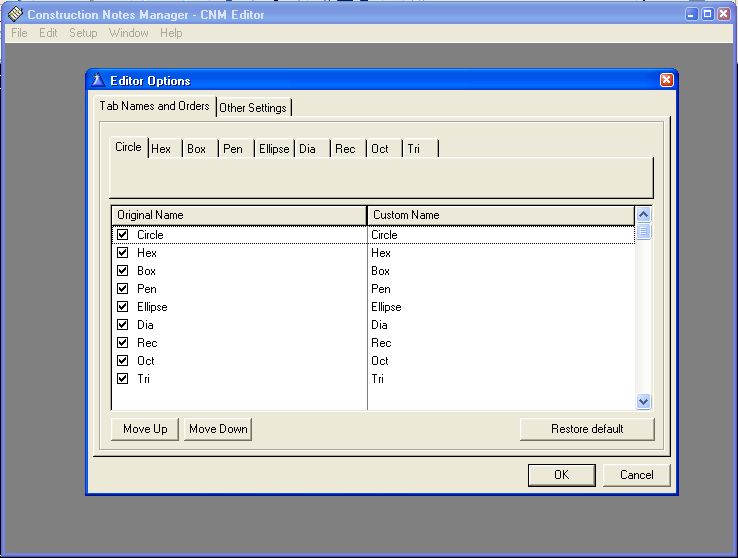
For example, here the Circle Tab is being set to be "Site Notes".
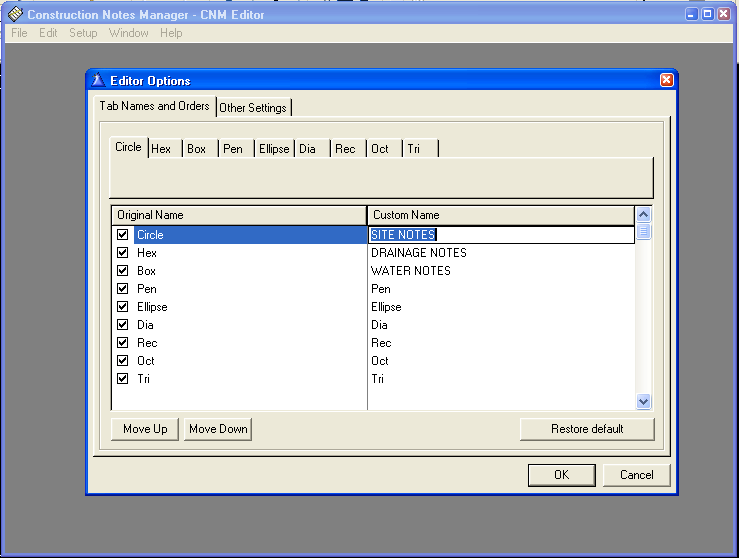
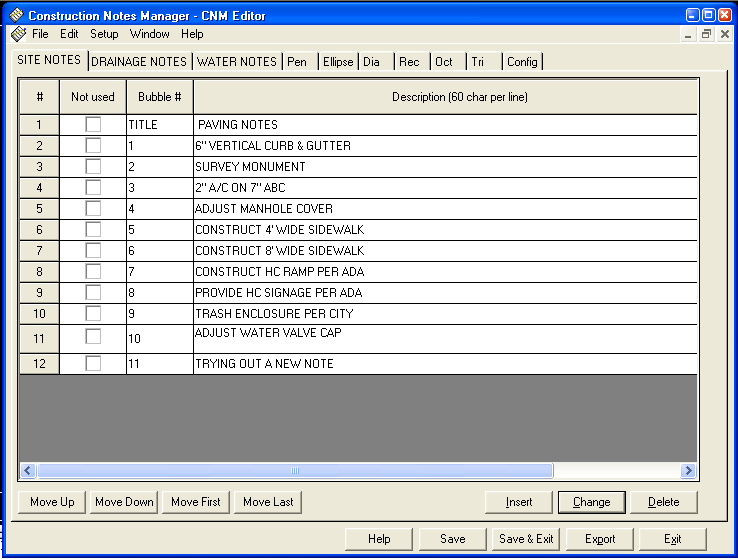
The next figure shows how the changes affected the tab names. The Circle notes were changed to "Site Notes", The Hex notes were changed to "Drainage Notes, and the Box Notes were changed to be Water Notes..
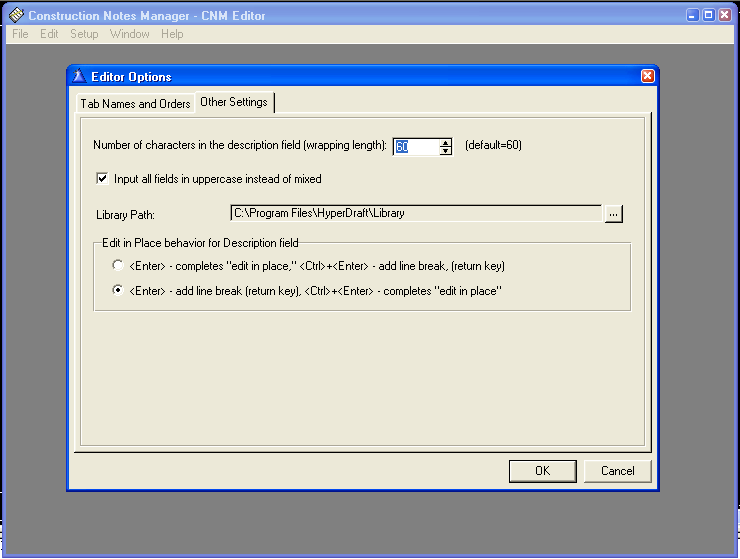
Lastly, under the Editor Options there is a tab for Other Settings. These fields directly relate to the editor as each instruction field implies. In order to change the word wrap in the editor to allow more or less characters per line, simply change the number. Again, feel free to change each setting to explore how each one affects the control of the notes editor.